> For the complete documentation index, see [llms.txt](https://docs.multiset.ai/llms.txt). Markdown versions of documentation pages are available by appending `.md` to page URLs; this page is available as [Markdown](https://docs.multiset.ai/unity-sdk/ar-foundation/sample-scenes/mapset-alignment.md).
# MapSet Alignment
The Unity utility scene for fixing MapSet alignment: load the geometry, adjust map transforms visually and push the corrected poses back to the server.
The **MapSet Alignment Tool** is a utility scene designed to help you manually correct alignment and merge errors in your MapSets.
While MultiSet automatically merges maps, complex environments may sometimes result in slight misalignments. This tool allows you to download the specific MapSet geometry into the Unity Editor, visually adjust the transforms (position and rotation) of individual maps, and push those corrected poses back to the server to fix the MapSet permanently.
**Use this tool if:**
* You notice visual "drift" or "ghosting" in a merged MapSet.
* Maps within a set are not aligning correctly relative to one another.
* You want to fine-tune the spatial relationship between maps after creation.
* Your Maps are huge and you can't use the [Developer portal for manual alignment](/fundamentals/mapset-multiple-maps/adjust-map-transformation.md)
### Component Reference
#### 1. MapSet Alignment Manager
This is the main controller script found on the root object in the scene. It handles communication with the MultiSet server.
**Configuration:**
* **Map Space GameObject:** The parent GameObject in your scene hierarchy under which the map meshes will be spawned.
* **MapSet Code:** The unique identifier (ID) of the MapSet you wish to edit (e.g., MSET\_0AJ28...).
**Actions:**
* **Download MapSet Data:** Fetches the map meshes and current pose data from the cloud and instantiates them in the scene.
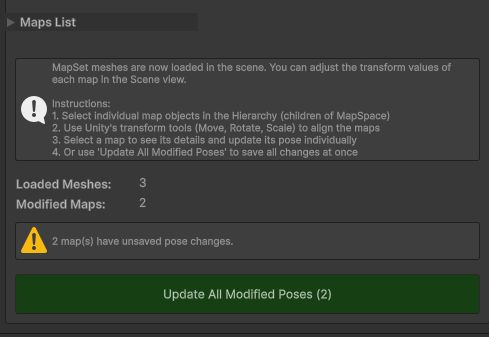
* **Update All Modified Poses:** Sends the new transform values of all modified maps back to the server. This button becomes active (Green) only when changes are detected.
#### 2. Map Data Reference
This script is automatically attached to each individual map object spawned inside the Map Space. It acts as a monitor for that specific map's data.
**Features:**
* **Map Identification:** Displays the unique Map Code and Name.
* **Current Pose (From Transform):** Real-time readout of the object's Position and Rotation in the Unity scene.
* **Unsaved Changes Warning:** A yellow warning icon appears if the object has been moved from its original server position.
***
### Workflow: How to Fix Alignment Errors
Follow these steps to manually realign a MapSet:
#### Step 1: Load the MapSet
1. Open the **MapSet Alignment Tool** scene.
2. Locate the **MapSet Alignment Manager** in the hierarchy.
3. Paste your target **MapSet Code** into the inspector.
4. Click **Download MapSet Data**.
* The tool will download the meshes for all maps in the set and place them as children of the "Map Space" object.
#### Step 2: Visual Alignment
1. Navigate to the **Scene View**.
2. Select the specific Map object in the Hierarchy that looks misaligned (children of Map Space).
3. Use standard Unity **Transform Tools** (Move W and Rotate E) to align the mesh so it matches perfectly with the other maps in the set.
* Note: As you move the object, the Map Data Reference component will show a warning: "This map has unsaved pose changes."
#### Step 3: Validate Changes
1. Look at the **MapSet Alignment Manager** inspector.
2. Under the "Maps List" or status section, you will see a count of **Modified Maps**.
3. Ensure only the maps you intended to move are counted.
#### Step 4: Save to Server
1. Click the green **Update All Modified Poses** button on the Manager script.
2. The tool will upload the new transforms to the MultiSet cloud.
3. Once complete, the warning icons will disappear, and your MapSet is now updated with the corrected alignment.
***
---
# Agent Instructions
This documentation is published with GitBook. GitBook is the documentation platform designed so that both humans and AI agents can read, navigate, and reason over technical content effectively. Learn more at gitbook.com.
## Querying This Documentation
If you need additional information that is not directly available in this page, you can query the documentation by asking a question.
Perform an HTTP GET request on the following URL with the `ask` and `goal` query parameters:
```
GET https://docs.multiset.ai/unity-sdk/ar-foundation/sample-scenes/mapset-alignment.md?ask=&goal=
```
`ask` is the immediate question: it should be specific, self-contained, and written in natural language.
`goal` is what the user is ultimately trying to achieve, the reason they need the answer. Sharing it helps GitBook give you a better, more relevant answer. A goal is most helpful when it describes the outcome the user wants rather than restating the question. For example, with `ask=how do I create an API token`, a goal like `automate deployments from our CI pipeline` lets GitBook tailor the answer to that use case.
The response will contain a direct answer to the question and relevant excerpts and sources from the documentation.
Use this mechanism when the answer is not explicitly present in the current page, you need clarification or additional context, or you want to retrieve related documentation sections.