> For the complete documentation index, see [llms.txt](https://docs.multiset.ai/llms.txt). Markdown versions of documentation pages are available by appending `.md` to page URLs; this page is available as [Markdown](https://docs.multiset.ai/fundamentals/third-party-scans/navvis-scans.md).
# NavVis Scans
Capture with NavVis VLX or M6 and export an E57 with equirectangular panoramas from NavVis IVION.
The NavVis Ivion platform generates equirectangular panoramas instead of cubic images like Matterport or Leica, and MultiSet handles this easily. By combining NavVis's high-quality mobile mapping systems with MultiSet's Visual Positioning System (VPS), you can efficiently create large-scale, AR-ready environments. This guide provides a walkthrough of the recommended devices, capture workflow, export settings, and the process for uploading to the MultiSet Developer Portal.
### Supported Devices
* NavVis VLX
* NavVis M6
### Scanning Workflow
The following is the recommended workflow for capturing data with NavVis devices for use with MultiSet.
#### 1. Prerequisites
| Item | Notes |
| -------------------- | -------------------------------------------------------- |
| **Scanner & Power** | Ensure your NavVis device is fully charged. |
| **Desktop Software** | NavVis IVION for processing and exporting the scan data. |
#### 2. Prepare the Environment
To ensure a high-quality scan, prepare the scanning area as follows:
* Make sure the area is well-lit. For outdoor areas, scan on a cloudy day to avoid direct sunlight.
* Remove any people or moving objects from the environment.
* Use door stoppers to keep all doors open.
* Hide any confidential materials.
* Plan your mapping route in advance.
#### 3. Capture the Space
* For general mapping guidelines, consult the NavVis documentation.
* In open spaces, set the automatic panorama capture trigger to a predefined length of up to 3 meters.
* In more complex environments, use the manual trigger for panorama capture.
#### 4. Process and Export in NavVis IVION
* Before processing your raw data, enable the **Include panoramas in .e57 point cloud** option.
* It is recommended to use a point-cloud density of 1 cm (0.4 inches).
* When exporting, choose the **.e57 with panoramas** option.
* For the Coordinate System, select **Dataset** to ensure the origin of the site is within the point-cloud
#### 5. Uploading to MultiSet
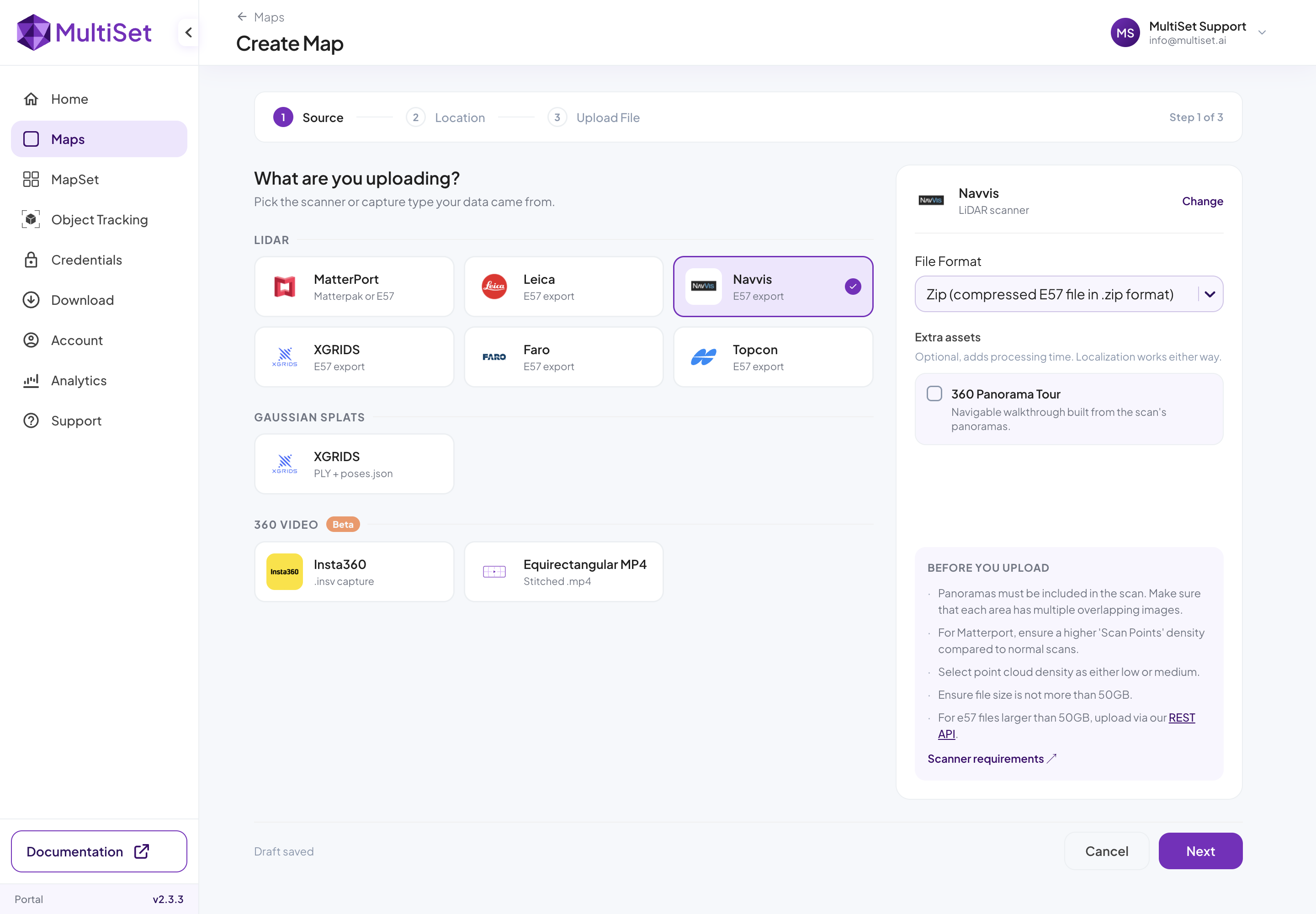
* In the MultiSet Developer Portal, navigate to **Create Map → Select NavVis → Upload**.
* Compress the exported .e57 file into a **.zip** and drag and drop the zip file.
* Processing time will vary depending on the file size. You will receive an email notification when your scan is complete.
### Best Practices
| Do | Avoid |
| ----------------------------------------------------------------------------------------------------------------------------------- | --------------------------------------------------------------------------------------------------- |
| **Use low-resolution LiDAR** for projects where AR is the only deliverable. | **High-resolution HDR**, as it can significantly increase file size with no benefit to the VPS. |
| **Keep the scanner out of mirrors** and windows. | **Walking within 2 meters of shiny surfaces**, such as glass facades, which can cause ghost points. |
| **Export one file per level** for multi-story buildings and then combine them in a [MapSet](/fundamentals/mapset-multiple-maps.md). | **A single, large export** for a multi-story building. |
---
# Agent Instructions
This documentation is published with GitBook. GitBook is the documentation platform designed so that both humans and AI agents can read, navigate, and reason over technical content effectively. Learn more at gitbook.com.
## Querying This Documentation
If you need additional information that is not directly available in this page, you can query the documentation by asking a question.
Perform an HTTP GET request on the following URL with the `ask` and `goal` query parameters:
```
GET https://docs.multiset.ai/fundamentals/third-party-scans/navvis-scans.md?ask=&goal=
```
`ask` is the immediate question: it should be specific, self-contained, and written in natural language.
`goal` is what the user is ultimately trying to achieve, the reason they need the answer. Sharing it helps GitBook give you a better, more relevant answer. A goal is most helpful when it describes the outcome the user wants rather than restating the question. For example, with `ask=how do I create an API token`, a goal like `automate deployments from our CI pipeline` lets GitBook tailor the answer to that use case.
The response will contain a direct answer to the question and relevant excerpts and sources from the documentation.
Use this mechanism when the answer is not explicitly present in the current page, you need clarification or additional context, or you want to retrieve related documentation sections.