> For the complete documentation index, see [llms.txt](https://docs.multiset.ai/llms.txt). Markdown versions of documentation pages are available by appending `.md` to page URLs; this page is available as [Markdown](https://docs.multiset.ai/fundamentals/third-party-scans/faro-scans.md).
# Faro Scans
Capture, register and export Faro scans for MultiSet, including the altimeter setting and the Color Panorama Image option in Faro SCENE.
MultiSet supports point cloud data captured using Faro laser scanners. To ensure the best localization performance, the data must be captured, processed, and exported according to specific guidelines.
### Supported Hardware
The following Faro devices are fully supported:
* **Faro Focus Series**
* **Faro Orbis**
* **Faro Flash/Hybrid** (formerly Blink/Swift workflows)
### Scanning Guidelines
High-quality data capture is essential for accurate localization. Please adhere to the following best practices during the scanning process:
* **Scan Spacing:** Maintain a distance of **1–2 meters** between scan locations. Close spacing ensures high overlap, which is critical for visual positioning.
* **Lighting:** Ensure the environment is well-lit. Avoid scanning in pitch-black areas or environments with rapidly changing lighting conditions.
* **Static Environment:** Minimize movement during the scan. Avoid areas with heavy foot traffic or moving machinery. If people are present, ask them to stand still or mask them out during post-processing.
#### Altimeter Settings (Critical)
Before starting your scan, you must **disable the Altimeter** on the scanner or controller app.
MultiSet requires the point cloud to use **Local Y coordinates** (relative to the first scan) rather than absolute geodetic height. Using the altimeter can introduce vertical shifts that misalign the map with the device's camera feed.
### Point Cloud density
Exporting dense point clouds can crash the map processing and significantly increase processing times. We recommend a **medium** point cloud density or a voxel size of **0.5 - 1.0 CM.**
### Post-Processing in Faro SCENE
Once data capture is complete, import your raw scans into **Faro SCENE** software.
1. **Registration:** Register your scans to create a cohesive project.
2. **Cleanup:** Manually clean the point cloud to remove noise, reflections (from mirrors or glass), and "ghosts" caused by moving people or objects. Clean data results in faster and more accurate localization.
### Exporting for MultiSet
To generate a compatible map file, you must export the data as an **.e57** file with specific settings enabled.
1. In Faro SCENE, right-click your processed cluster or project and select **Export > Export Scan Points**.
2. Set the **Format** to E57 Files (\*.e57).
3. **Crucial:** Ensure the **Color Panorama Image** checkbox is **CHECKED**. MultiSet relies on these panoramic images for visual feature extraction.
4. Ensure **Full Scan** is selected (do not use "Selection" unless you specifically intend to crop the map).
5. Click **Export**.
#### Upload
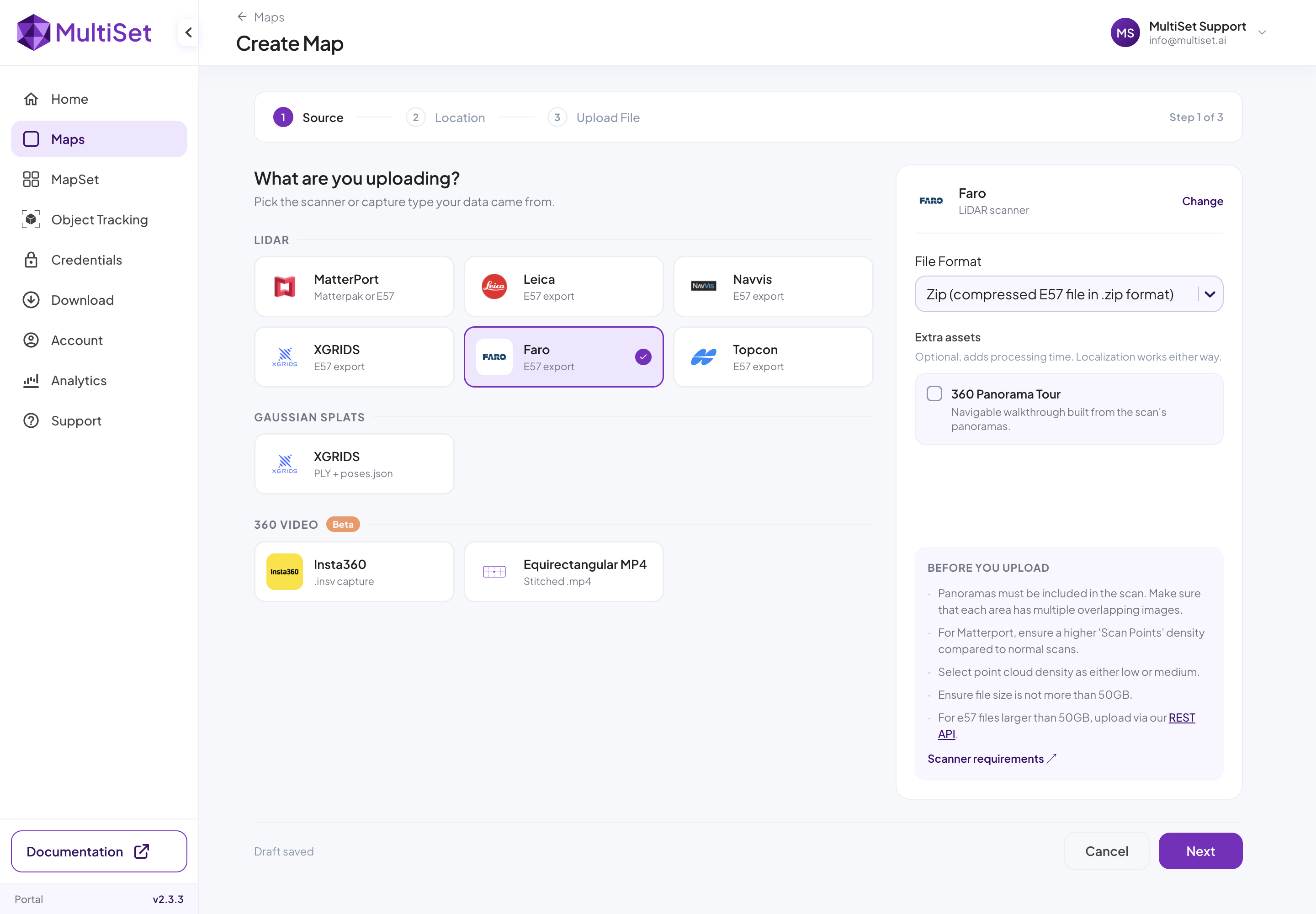
Once the .e57 file is generated, zip it and then log in to the MultiSet Developer Portal and upload the file to create your new Map.
---
# Agent Instructions
This documentation is published with GitBook. GitBook is the documentation platform designed so that both humans and AI agents can read, navigate, and reason over technical content effectively. Learn more at gitbook.com.
## Querying This Documentation
If you need additional information that is not directly available in this page, you can query the documentation by asking a question.
Perform an HTTP GET request on the following URL with the `ask` and `goal` query parameters:
```
GET https://docs.multiset.ai/fundamentals/third-party-scans/faro-scans.md?ask=&goal=
```
`ask` is the immediate question: it should be specific, self-contained, and written in natural language.
`goal` is what the user is ultimately trying to achieve, the reason they need the answer. Sharing it helps GitBook give you a better, more relevant answer. A goal is most helpful when it describes the outcome the user wants rather than restating the question. For example, with `ask=how do I create an API token`, a goal like `automate deployments from our CI pipeline` lets GitBook tailor the answer to that use case.
The response will contain a direct answer to the question and relevant excerpts and sources from the documentation.
Use this mechanism when the answer is not explicitly present in the current page, you need clarification or additional context, or you want to retrieve related documentation sections.