Find Hint Coordinates
Capture a position on a Map or MapSet mesh and use it as the HintPosition and HintFloorHeight for a MultiSet Localization query.
Overview
The Localization query API accepts a HintPosition that restricts the search scope to a radius around a known point in the map's coordinate system, and a HintFloorHeight that restricts the search to a vertical Y-axis band. Together they significantly improve localization speed and accuracy in large, multi-floor, or visually repetitive spaces.
This page shows two ways to read the coordinates of any point on a Map (or MapSet):
MultiSet Developer Portal : pick the point visually in the web 3D viewer.
Unity : pick the point on the downloaded mesh inside a sample scene.
In both flows the value you copy is an (x, y, z) position in the map's left-handed (LHS / Unity) coordinate system, measured relative to the map origin. This is exactly the coordinate space the Localization query expects, so the captured value can be used in two ways:
The full
(x, y, z)position is passed directly as thehintPosition.The Y value of a captured point is the height of that point. By capturing a point on the floor and a point on the ceiling, you read the two Y values that form the
hintFloorHeightband.
Method 1 : MultiSet Developer Portal
Use the web portal when you want to grab a hint coordinate quickly without opening Unity.
In the MultiSet web portal, open the 3D viewer using the View Mesh button.
Wait for the map mesh to finish loading in the scene.
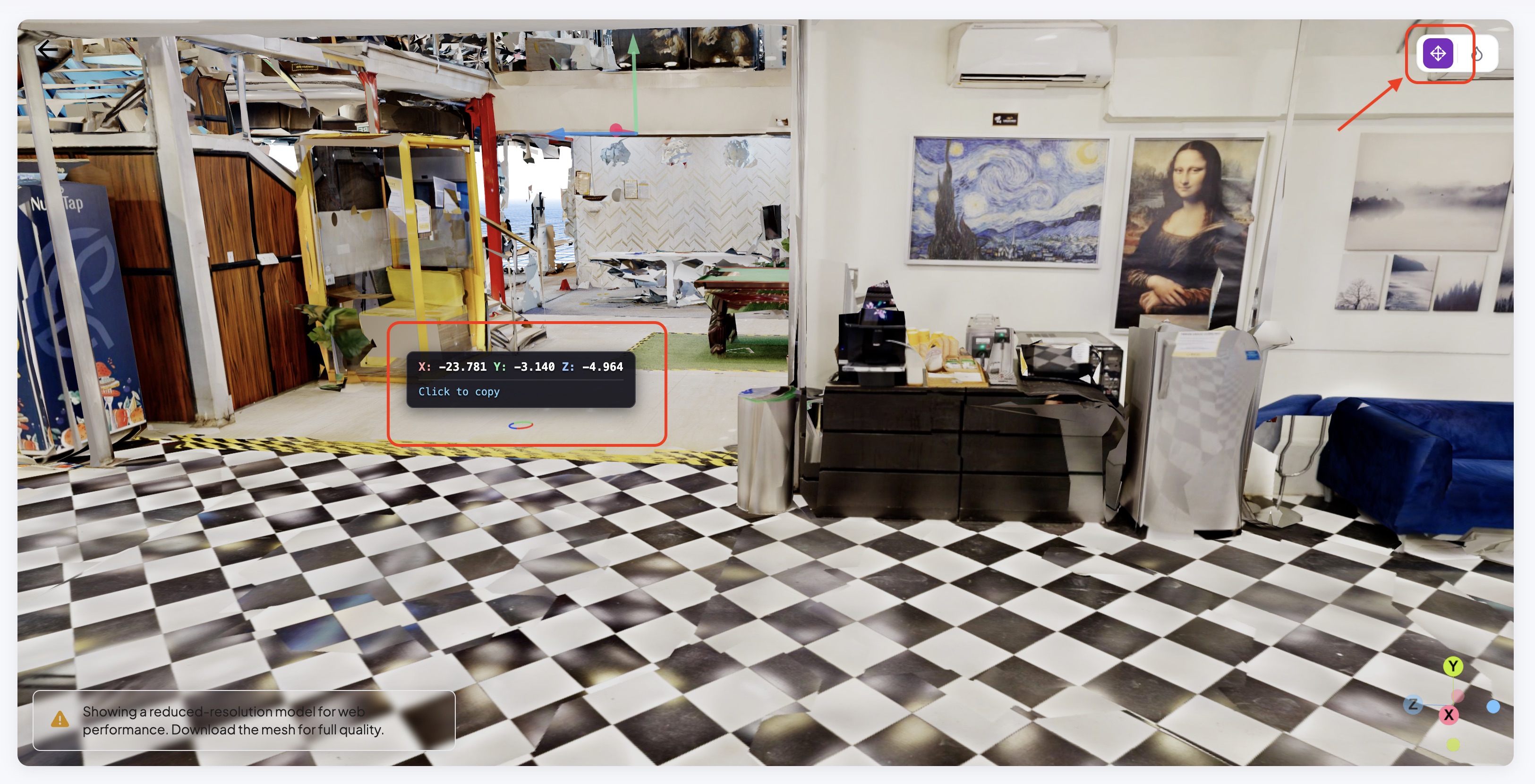
Click the Hint Cursor button in the top-right corner of the viewer.
The viewer now displays the hint position for the current map (relative to the map origin) at the current cursor location. Move the cursor over the mesh to read the position for any point.
Click to copy the displayed cursor position to your clipboard.

X / Y / Z position at the cursor. Click the readout to copy it.Method 2 : Unity
Use Unity when you are already working in the SDK or want to pick the hint point against the same mesh your app uses.
Step 1 — Open a sample scene with a mesh
Open any sample scene that can load a Map Mesh or MapSet Mesh, for example the Localization or Navigation scene.
Step 2 — Enter the map code
Select the LocalizationManager component and enter your mapCode (or mapSetCode).
Step 3 — Download the mesh
Select the MapMeshDownloader component and click Download Mesh in the Inspector. Wait until the Map Mesh or MapSet Mesh appears in the scene.
Step 4 — Add the MapPointInspector component
Make sure a MapPointInspector component is present in the scene. If it is not, create an empty GameObject and add the MapPointInspector script to it.
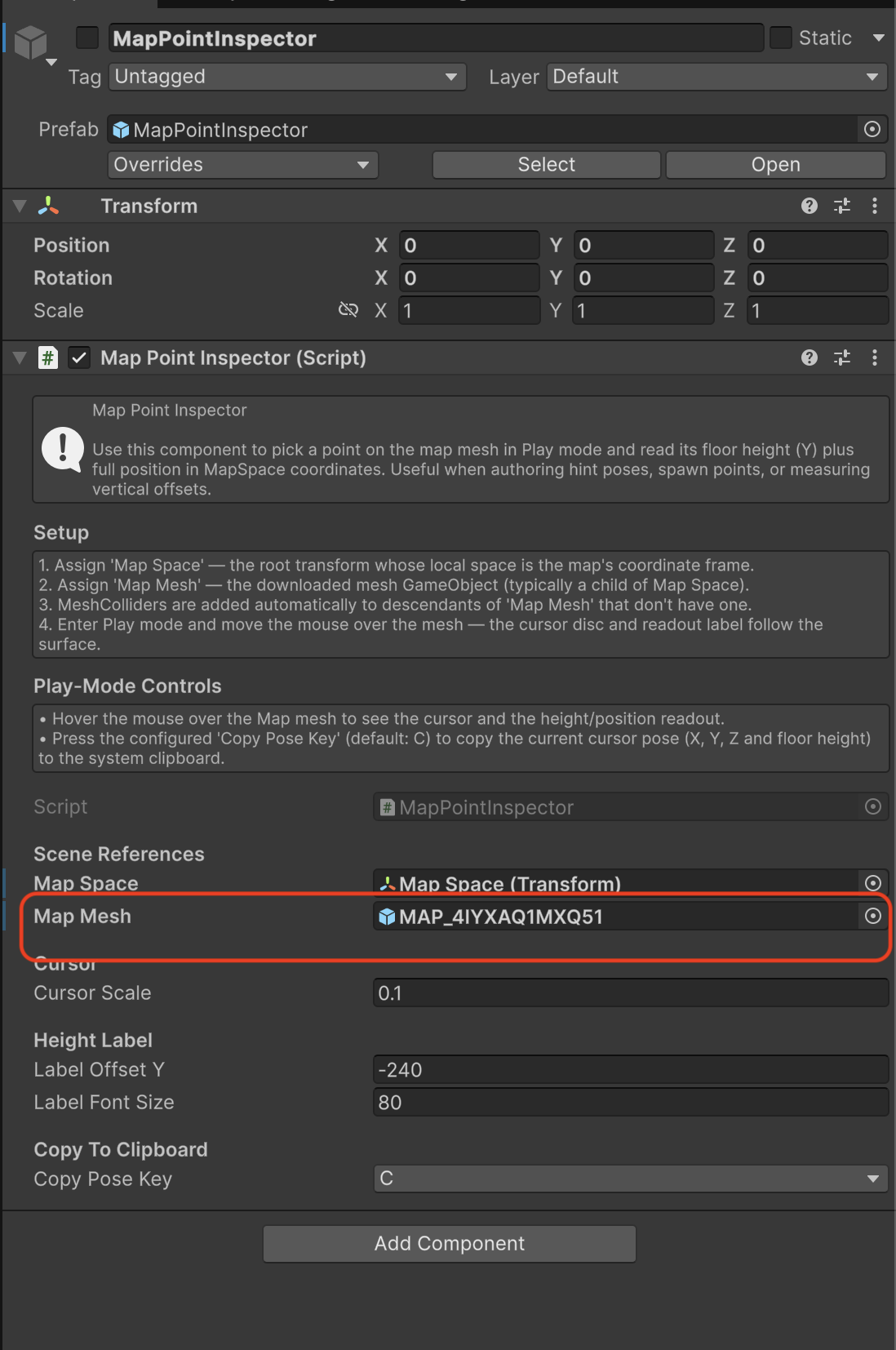
Assign the downloaded Map Mesh (or MapSet Mesh) object to the Map Mesh field of the MapPointInspector component.
Step 5 — Enter Play mode and pick a point
Press Play to enter Play mode in the Editor.
Navigate around the scene using the W, A, S, D keys to reach the location on the map where you want to record the hint position.
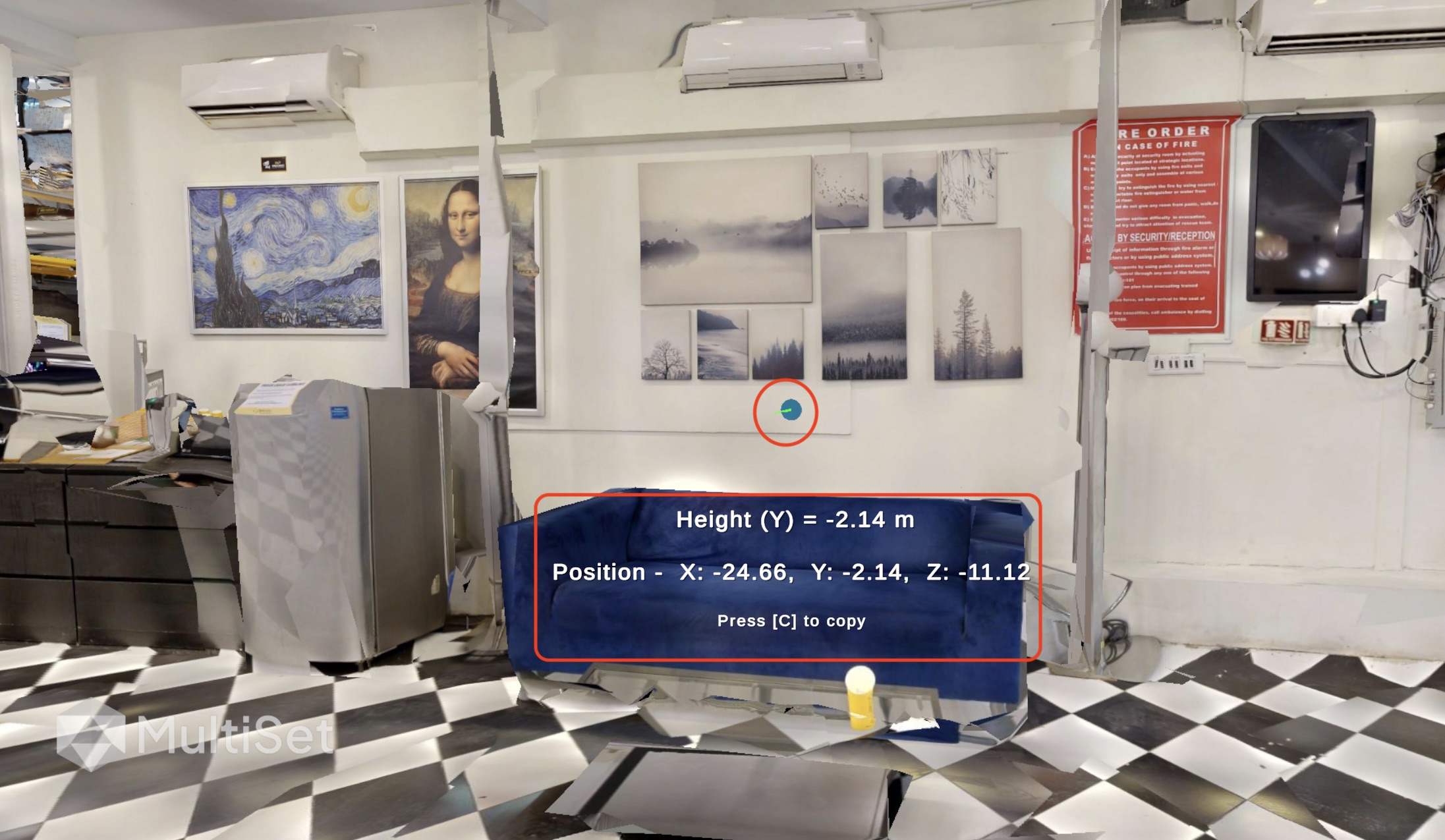
A cursor appears on the mesh, with the position details displayed just below it, including the height
(Y)and the fullX / Y / Zposition.Press C on the keyboard to copy the current position to your clipboard.

Using the captured value
As a HintPosition
The copied position is an (x, y, z) coordinate in the map's LHS coordinate system. Pass it directly as the hintPosition in your Localization query:
For full details on how the hint narrows the search and related parameters such as hintRadius, see Pose Prior : HintPosition.
As a HintFloorHeight
The Y value of a captured point is its height in the map's coordinate system, so the same Hint Cursor (portal) or MapPointInspector (Unity) can read the floor and ceiling heights that define a hintFloorHeight band:
Capture a point on the floor of the level you want to localize on. Its Y value is the lower bound (
y_min).Capture a point on the ceiling of the same level (or the top of the space). Its Y value is the upper bound (
y_max).Use the two Y values as the
[y_min, y_max]band. Order does not matter: the query accepts either ordering.
You can combine both hints in a single query: pass the full (x, y, z) as hintPosition and the floor/ceiling Y values as hintFloorHeight to get the tightest search scope. For full details on the vertical band and MapSet behavior, see HintFloorHeight.
Last updated
Was this helpful?