> For the complete documentation index, see [llms.txt](https://docs.multiset.ai/llms.txt). Markdown versions of documentation pages are available by appending `.md` to page URLs; this page is available as [Markdown](https://docs.multiset.ai/fundamentals/third-party-scans/gaussian-splat/xgrids-gaussian-splat.md).

# Xgrids Gaussian Splat Export

Export a Gaussian Splat from Xgrids Lixel CyberColor for use with Multiset VPS.

All Xgrids scanners (K1, K2, PortalCam, L2 Pro, L3 Pro) can produce a Gaussian Splat reconstruction via **Lixel CyberColor**. This page walks through the export steps and how to package the output for upload to Multiset.

{% hint style="info" %}
For the e57 point-cloud workflow, see [Xgrids Scans](/fundamentals/third-party-scans/xgrids-scans.md) instead. The steps below are specific to the **Gaussian Splat** upload path.
{% endhint %}

{% hint style="success" %}
**Coordinate frame: right-handed, Z up.** The Multiset Gaussian Splat pipeline expects the splat and its camera poses in a **right-handed coordinate system with +Z up**, which is exactly what Lixel CyberColor writes. Xgrids exports need no conversion. Splats from other tools do, see [Splats from Other Tools](/fundamentals/third-party-scans/gaussian-splat/splats-from-other-tools.md).
{% endhint %}

#### You will need

* An Xgrids scan (K1, K2, PortalCam, L2 Pro, L3 Pro).
* **Lixel CyberColor** (v1.12.1 or newer), available from Xgrids support downloads.

## Step 1: Generate the Gaussian Splat model

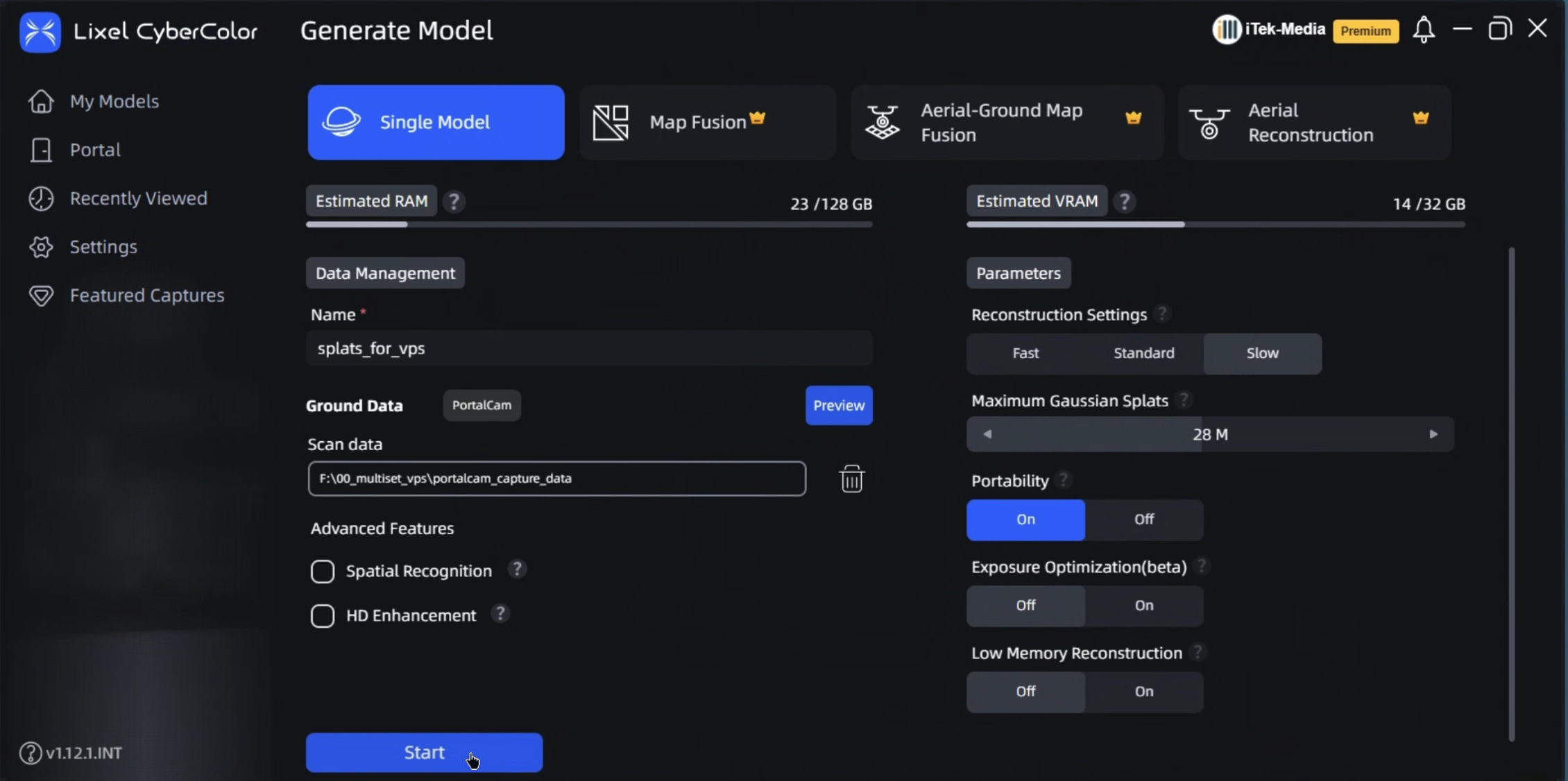
1. Open **Lixel CyberColor** and click **Create** to start a new model.
2. Choose **Single Model** as the reconstruction type.
3. Give the project a name (e.g. `splats_for_vps`) and set the **Scan data** path to your captured `portalcam_capture_data` folder.
4. In the **Parameters** panel on the right:
   * **Reconstruction Settings**: choose **Slow** for the best quality suitable for VPS.
   * **Maximum Gaussian Splats**: leave at the recommended value (e.g. `28M`) or raise it for larger scenes.
   * **Portability**: **On**. This is important, it produces a metric-scaled, portable output that Multiset VPS can use.
   * Leave **Exposure Optimization** and **Low Memory Reconstruction** at defaults unless you have a specific reason to change them.
5. Click **Start** and let the reconstruction run.

<figure><img src="https://3163433004-files.gitbook.io/~/files/v0/b/gitbook-x-prod.appspot.com/o/spaces%2FokTDI7QVY04Zvb1pQ8Ry%2Fuploads%2Fgit-blob-c424a7fc8c5e512532708364b6ddd75b405fd8e3%2Fxgrids-gs-generate-model.png?alt=media" alt=""><figcaption><p>Lixel CyberColor: Generate Model with Portability On and Slow reconstruction.</p></figcaption></figure>

{% hint style="warning" %}
**Portability must be On.** Without it the Gaussian Splat will not be in metric scale and cannot be used for VPS.
{% endhint %}

## Step 2: Locate the exported `.ply`

Once the reconstruction finishes, Lixel CyberColor writes the point cloud (`.ply`) outputs under the project's output directory:

```
<output>\ply-result\point_cloud\iteration_100\
```

Inside `iteration_100` you will find files like:

* `point_cloud.ply` (**this is the file you upload**)
* `point_cloud_1.ply`, `point_cloud_2.ply`, `point_cloud_3.ply` (lower levels of detail)
* `environment.ply`

Use the top-level **`point_cloud.ply`**, the full-resolution Gaussian Splat.

<figure><img src="https://3163433004-files.gitbook.io/~/files/v0/b/gitbook-x-prod.appspot.com/o/spaces%2FokTDI7QVY04Zvb1pQ8Ry%2Fuploads%2Fgit-blob-f50678fb89cb79eef8f21e89bf12a1caa798ef67%2Fxgrids-gs-point-cloud-ply.png?alt=media" alt=""><figcaption><p>point_cloud.ply inside <code>output\ply-result\point_cloud\iteration_100</code>.</p></figcaption></figure>

## Step 3: Locate `poses.json`

The camera poses used to train the splat are written by Lixel CyberColor at:

```
<DATA>\<project-id>\output\render\assets\poses.json
```

<figure><img src="https://3163433004-files.gitbook.io/~/files/v0/b/gitbook-x-prod.appspot.com/o/spaces%2FokTDI7QVY04Zvb1pQ8Ry%2Fuploads%2Fgit-blob-3101ad077fae7c9108b10414dcf6bd9f0c455a02%2Fxgrids-gs-poses-json.png?alt=media" alt=""><figcaption><p>poses.json inside <code>output\render\assets</code>.</p></figcaption></figure>

This file contains an array of per-frame poses (`ts`, translation `T`, rotation quaternion `R`) that Multiset uses to register the splat against query images.

## Step 4: Zip `.ply` and `poses.json` together

Multiset expects a **single zip** containing both files at the root:

```
my-xgrids-splat.zip
├── point_cloud.ply
└── poses.json
```

Select both files, right-click → **Compress** (macOS) or **Send to → Compressed (zipped) folder** (Windows).

{% hint style="warning" %}
Do not place the files inside a subfolder inside the zip. Multiset reads them from the root of the archive.
{% endhint %}

## Step 5: Upload to Multiset

On the Multiset developer portal:

1. Open **Upload Existing Map**.
2. **Select Provider** → **XGRIDS**.
3. **File Format** → **Gaussian Splat (ply and poses.json compressed in same zip)**.
4. Click **Next** and answer the configuration prompts:
   * *Is the Gaussian Splat metric scaled?* → **Yes** (because Portability was On in Step 1).
   * *Indoor or outdoor?* → pick the one that matches your capture.
   * *Does the Gaussian Splat have poses.json?* → **Yes**.
5. Upload the zip from Step 4.

<figure><img src="https://3163433004-files.gitbook.io/~/files/v0/b/gitbook-x-prod.appspot.com/o/spaces%2FokTDI7QVY04Zvb1pQ8Ry%2Fuploads%2Fgit-blob-3bec0d7028c4a76e62d228eb5924a73cd82449f0%2Fmultiset-upload-gs-xgrids.png?alt=media" alt="" width="375"><figcaption><p>Upload Existing Map: XGRIDS plus Gaussian Splat file format.</p></figcaption></figure>

<figure><img src="https://3163433004-files.gitbook.io/~/files/v0/b/gitbook-x-prod.appspot.com/o/spaces%2FokTDI7QVY04Zvb1pQ8Ry%2Fuploads%2Fgit-blob-f871004aeaef98ba9cb5f8ca001baf3b40b0b4db%2Fmultiset-upload-gs-config.png?alt=media" alt="" width="375"><figcaption><p>Gaussian Splat configuration: metric-scaled, indoor or outdoor, poses.json.</p></figcaption></figure>

Once processing completes the map behaves like any other Multiset map: you can query it via the REST API, Unity SDK, or native SDKs.


---

# Agent Instructions
This documentation is published with GitBook. GitBook is the documentation platform designed so that both humans and AI agents can read, navigate, and reason over technical content effectively. Learn more at gitbook.com.

## Querying This Documentation
If you need additional information that is not directly available in this page, you can query the documentation by asking a question.

Perform an HTTP GET request on the following URL with the `ask` and `goal` query parameters:

```
GET https://docs.multiset.ai/fundamentals/third-party-scans/gaussian-splat/xgrids-gaussian-splat.md?ask=<question>&goal=<user_goal>
```

`ask` is the immediate question: it should be specific, self-contained, and written in natural language.
`goal` is what the user is ultimately trying to achieve, the reason they need the answer. Sharing it helps GitBook give you a better, more relevant answer. A goal is most helpful when it describes the outcome the user wants rather than restating the question. For example, with `ask=how do I create an API token`, a goal like `automate deployments from our CI pipeline` lets GitBook tailor the answer to that use case.

The response will contain a direct answer to the question and relevant excerpts and sources from the documentation.

Use this mechanism when the answer is not explicitly present in the current page, you need clarification or additional context, or you want to retrieve related documentation sections.
