> For the complete documentation index, see [llms.txt](https://docs.multiset.ai/llms.txt). Markdown versions of documentation pages are available by appending `.md` to page URLs; this page is available as [Markdown](https://docs.multiset.ai/fundamentals/sharing-maps.md).

# Sharing Maps

Send a map or map set to someone who has no MultiSet account. They open a link in a browser and walk the scan. Nothing is installed, nothing is signed in.

## Overview

A **share link** publishes one map or one map set to a public URL. Anyone holding the link can open it in a browser and explore the scan: orbit the mesh, fly through the Gaussian splat, or walk the 360° tour. They do not need a MultiSet account, and they never see your dashboard, your other maps, or your API credentials.

Use it to send a finished scan to a client, to put a walkthrough in a proposal, or to get a second opinion from someone outside your team.

{% hint style="warning" %}
**The link is the credential.** There is no password and no sign-in step. Anyone who obtains the URL can view the scan, so treat it like a secret. If a link reaches the wrong person, revoke it (see [Revoking a link](#revoking-a-link)).
{% endhint %}

## Creating a link

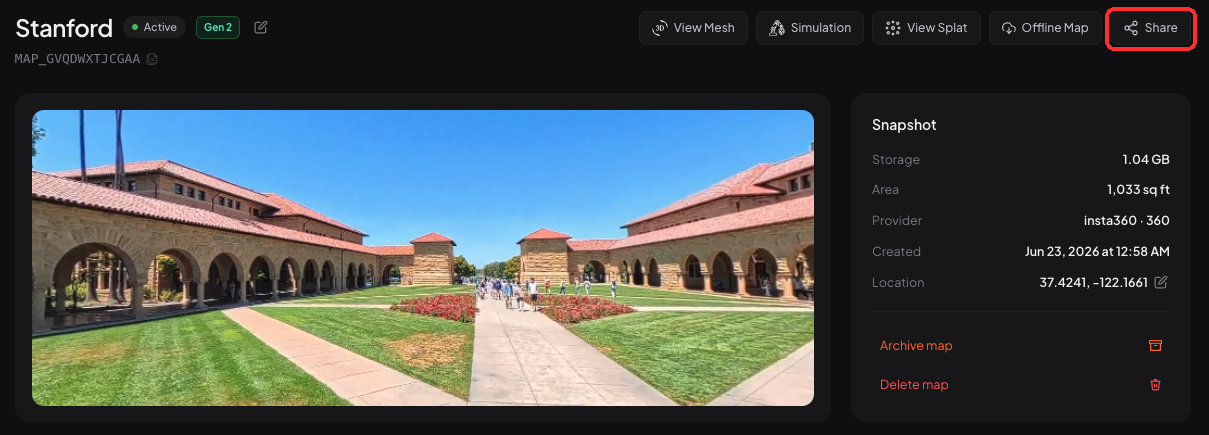
Open the map in the Developer Portal and click **Share** in the top right.

<figure><img src="https://3163433004-files.gitbook.io/~/files/v0/b/gitbook-x-prod.appspot.com/o/spaces%2FokTDI7QVY04Zvb1pQ8Ry%2Fuploads%2Fgit-blob-b0ee3f104589727c604f83759ff39ff625b980ca%2Fshare-button.png?alt=media" alt="The Share button on a map detail page, highlighted in red"><figcaption><p>The <strong>Share</strong> button sits with the other view actions on the map detail page.</p></figcaption></figure>

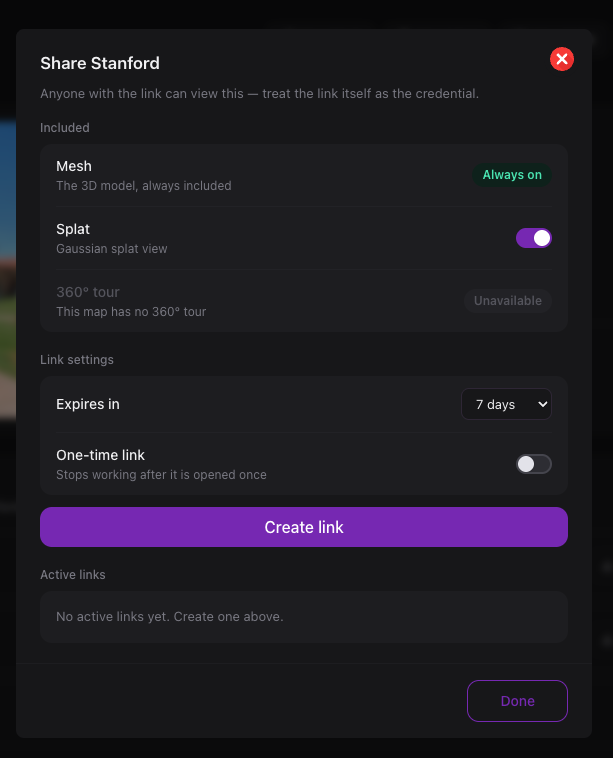
The share dialog opens. Choose what to include, set how long the link should last, then click **Create link**.

<figure><img src="https://3163433004-files.gitbook.io/~/files/v0/b/gitbook-x-prod.appspot.com/o/spaces%2FokTDI7QVY04Zvb1pQ8Ry%2Fuploads%2Fgit-blob-7b1cde7aaf72779ad197bed686aebeb021d3deaf%2Fshare-dialog.png?alt=media" alt="The share dialog, showing included assets, link settings, and active links" width="480"><figcaption><p>Everything about a link is set here. Links you have already created are listed under <strong>Active links</strong>.</p></figcaption></figure>

### What to include

| Asset         | Behaviour                                                                        |
| ------------- | -------------------------------------------------------------------------------- |
| **Mesh**      | Always included. It is what the viewer opens with, so it cannot be switched off. |
| **Splat**     | Optional. Adds the Gaussian splat view. Only offered when the map has a splat.   |
| **360° tour** | Optional. Adds the panorama walk. Only offered when the map has a tour.          |

An asset the map does not have is shown as **Unavailable** and cannot be selected.

{% hint style="info" %}
Splat is not available on a **map set** share. A map set link carries the mesh of every member map, positioned in the set's common frame, and the 360° tour when the members have one.
{% endhint %}

### Link settings

| Setting           | What it does                                                                                                       |
| ----------------- | ------------------------------------------------------------------------------------------------------------------ |
| **Expires in**    | How long the link stays valid. Choose a preset, or **Never** for a link with no end date. The default is 7 days.   |
| **One-time link** | The link stops working after it has been opened once. Useful when you are sending a scan to a single named person. |

{% hint style="info" %}
A one-time link is consumed the moment it is **opened**, not when the viewer finishes looking. If your recipient reloads the tab, the link is already spent. Prefer a short expiry over a one-time link when the recipient may come back to it.
{% endhint %}

## Managing links

Existing links appear under **Active links** in the same dialog. Each row shows its share code, how many times it has been opened, when it was last opened, and badges for its expiry and included assets.

**Copy** puts the URL on your clipboard. When a link includes more than one view, the dropdown lets you copy a URL that opens directly in a particular one, so you can send someone straight to the splat rather than the mesh.

### Revoking a link

**Revoke** kills the link immediately, for everyone.

Revocation also cuts off anyone who already has the link open. They lose access on their next action rather than keeping it until they close the tab.

Revoking cannot be undone. Create a new link if you need to share the scan again, and the old URL stays dead.

## What the recipient sees

The viewer opens in the browser with no MultiSet branding around it and no account prompt. The map name and code sit in the top left, and the available views are switched from the toggle at the top.

### 3D view

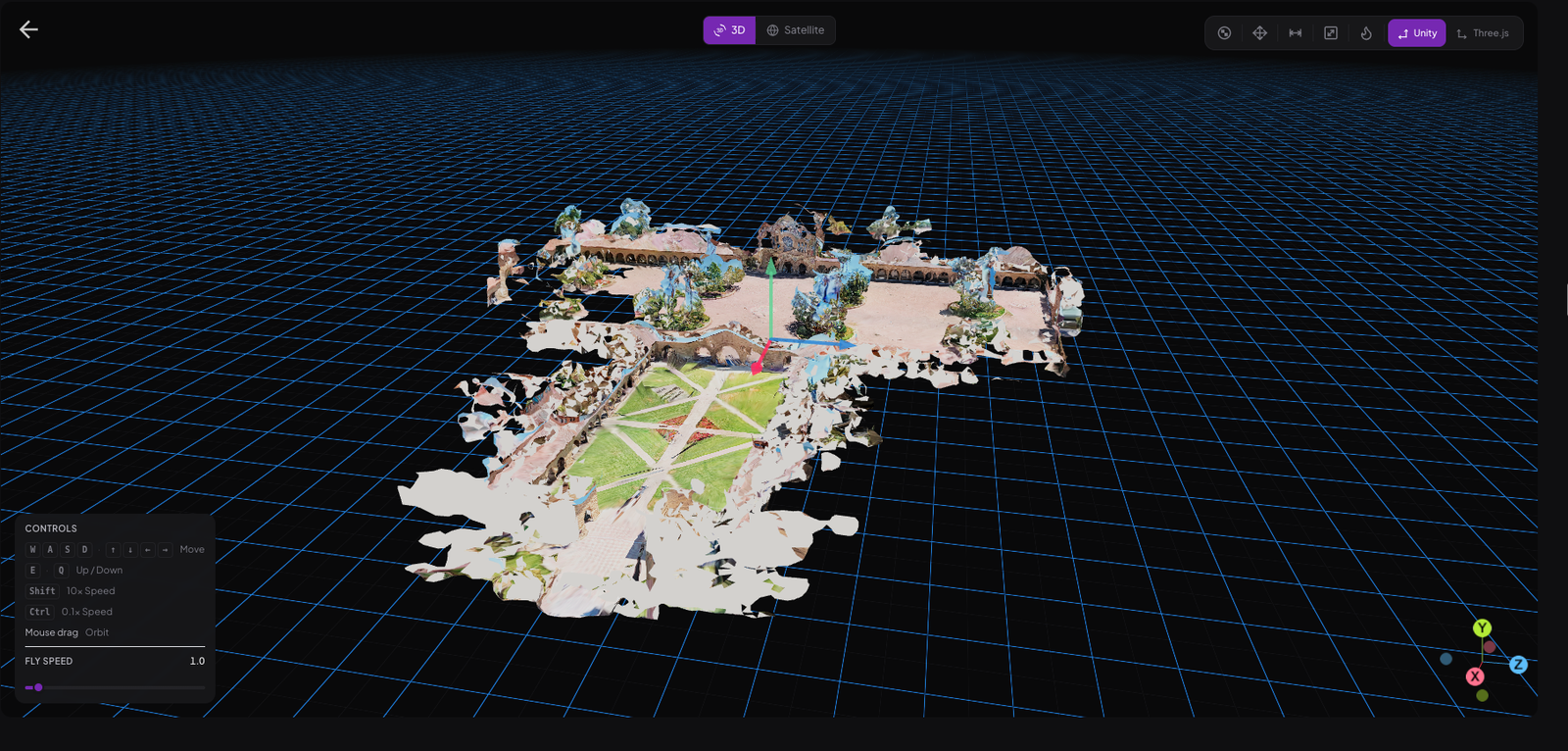
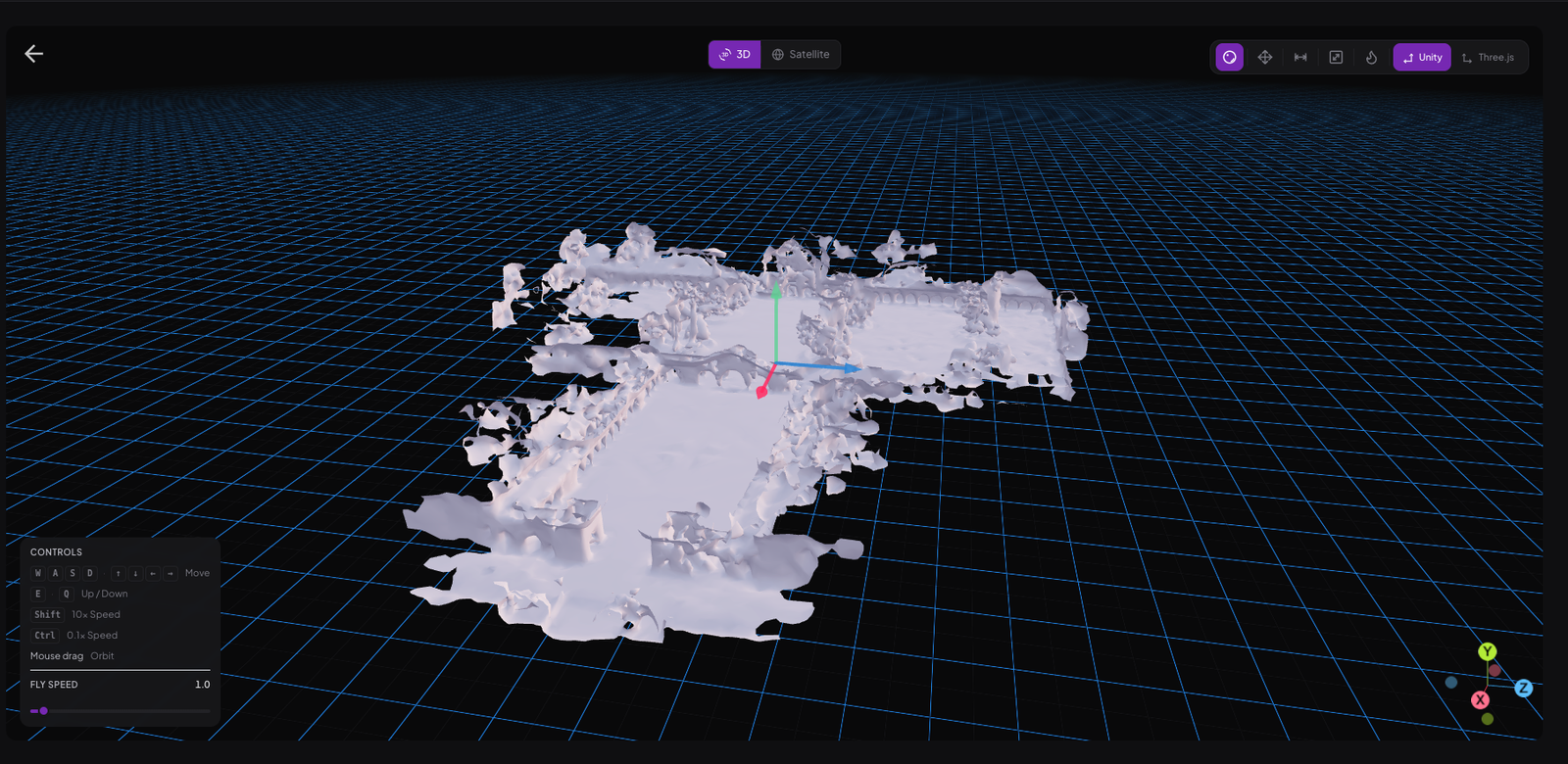
The mesh, orbited and flown with mouse and keyboard. **Textures** and **Geometry** switch between the photo-textured mesh and the bare geometry.

<figure><img src="https://3163433004-files.gitbook.io/~/files/v0/b/gitbook-x-prod.appspot.com/o/spaces%2FokTDI7QVY04Zvb1pQ8Ry%2Fuploads%2Fgit-blob-9e47411aa350bb44d16df51bef5a7fe9a3dca8e4%2Fshare-viewer-3d.png?alt=media" alt="The share viewer in 3D mode showing a textured mesh"><figcaption><p>3D view with textures on.</p></figcaption></figure>

<figure><img src="https://3163433004-files.gitbook.io/~/files/v0/b/gitbook-x-prod.appspot.com/o/spaces%2FokTDI7QVY04Zvb1pQ8Ry%2Fuploads%2Fgit-blob-785f9e8fef584b38154de68291dbb26b9b8f0abc%2Fshare-viewer-geometry.png?alt=media" alt="The share viewer in 3D mode showing untextured geometry"><figcaption><p>The same scan with textures off, which is often easier to read for structure and coverage.</p></figcaption></figure>

Controls are listed in the corner of the viewer: `W` `A` `S` `D` and the arrow keys to move, `E` and `Q` for up and down, `Shift` and `Ctrl` for faster and slower movement, and mouse drag to orbit.

### 360° view

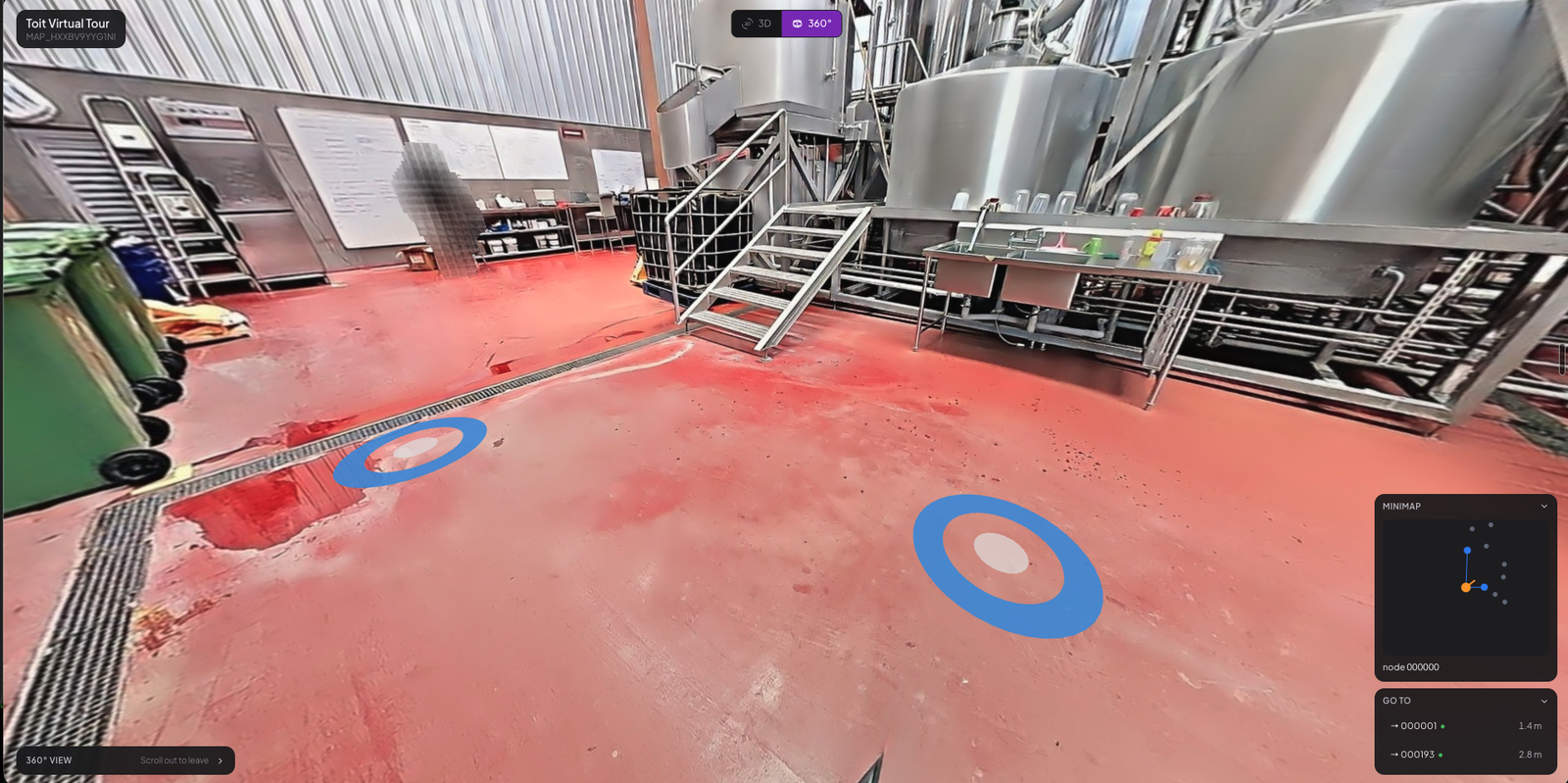
Available when the share includes a tour. The viewer stands where the camera stood, with the 3D model still around them. Rings on the floor mark the capture points, and clicking one walks to it. A minimap and a **Go to** list of nearby points help with orientation in larger spaces.

<figure><img src="https://3163433004-files.gitbook.io/~/files/v0/b/gitbook-x-prod.appspot.com/o/spaces%2FokTDI7QVY04Zvb1pQ8Ry%2Fuploads%2Fgit-blob-86780251e756efe576734ef4c7ef573113c2ff9e%2Fshare-viewer-360.png?alt=media" alt="The share viewer in 360 mode, showing capture point rings, a minimap, and a Go to list"><figcaption><p>360° view. Drag to look and click a ring to move. The minimap and <strong>Go to</strong> list help with orientation in larger spaces.</p></figcaption></figure>

Large tours are fully navigable, including sections that are not connected to the main walk. If a recipient's machine cannot handle the textured mesh, the viewer falls back to plain geometry rather than failing to load.

{% hint style="info" %}
Share links are created and managed from the Developer Portal. They are **not** part of the machine-to-machine API, so an M2M client cannot mint or revoke a link on your behalf.
{% endhint %}

## Limits worth knowing

* A link points at one map **or** one map set, never a mixture.
* The target must be **active**. A map that is still processing, archived, or failed cannot be shared.
* Requesting an asset the target does not have is rejected when the link is created, rather than producing an empty viewer later.
* Opening a link is counted. The count is visible in the dialog, which is a rough signal of whether a recipient has actually looked at what you sent.


---

# Agent Instructions
This documentation is published with GitBook. GitBook is the documentation platform designed so that both humans and AI agents can read, navigate, and reason over technical content effectively. Learn more at gitbook.com.

## Querying This Documentation
If you need additional information that is not directly available in this page, you can query the documentation dynamically by asking a question.

Perform an HTTP GET request on the current page URL with the `ask` query parameter, and the optional `goal` query parameter:

```
GET https://docs.multiset.ai/fundamentals/sharing-maps.md?ask=<question>&goal=<endgoal>
```

`ask` is the immediate question: it should be specific, self-contained, and written in natural language.
`goal` is optional and describes the broader end goal you are ultimately trying to accomplish on behalf of the user. GitBook uses it to tailor the answer towards what is most useful for that goal.

The response will contain a direct answer to the question and relevant excerpts and sources from the documentation.

Use this mechanism when the answer is not explicitly present in the current page, you need clarification or additional context, or you want to retrieve related documentation sections.