> For the complete documentation index, see [llms.txt](https://docs.multiset.ai/llms.txt). Markdown versions of documentation pages are available by appending `.md` to page URLs; this page is available as [Markdown](https://docs.multiset.ai/fundamentals/georeferencing-maps/geo-fence.md).

# Geo-fence

Resolve a coordinate to the map that covers it, and localize without naming a map.

## Overview

A **geo-fence** is the real-world area a map covers. It follows the shape of the scan rather than a circle drawn around a pin, so it stays accurate on sites that are long, irregular, or built on several levels.

It answers a question a GPS fix alone cannot: *which of my maps is this person standing in?*

That unlocks two things:

* **Localize by coordinate.** Send a position instead of a `mapCode` and let the server pick the map.
* **Resolve once, cache it.** Ask what is nearby at the start of a session, then query that target for the rest of it.

## Prerequisite: geo-reference the map

**A map with no geo-reference has no fence, and is invisible to everything on this page.** Nothing below works until the map has real-world coordinates and a heading.

There are three ways to get there, depending on what you have:

| You have                               | Use                                                                                                                                                                                     |
| -------------------------------------- | --------------------------------------------------------------------------------------------------------------------------------------------------------------------------------------- |
| A surveyed E57 in a known grid         | Declare it at upload with [`source.metadata.crs`](/fundamentals/rest-api-docs/map-upload/coordinate-reference-system.md). The scan georeferences itself.                                |
| An existing map and some known points  | [Georeference Map](/fundamentals/rest-api-docs/georeference.md), which solves origin and heading from ground control points.                                                            |
| A rough position and a compass bearing | Place the map over satellite view in the Developer Portal ([below](#generating-a-fence-manually)), or [auto geo-reference](/fundamentals/georeferencing-maps/auto-georeference-map.md). |

## When a fence is available

Fences are produced for you. You never create or upload one.

A map has a fence once it is **active** and carries both **coordinates** and a **heading**. Changing either of those refreshes the fence, and it is briefly unavailable while that happens.

`geoFenceReady` on the map tells you where things stand. While it is `false`, `geoFence` is `null` and the map is not matched by anything on this page.

{% hint style="warning" %}
`geoFenceReady: false` covers both "not ready yet" and "cannot have one", so it does not on its own tell you a fence is coming. If one never appears, check that the map is active and has both coordinates and a heading.
{% endhint %}

## Generating a fence manually

A fence is produced when a map's placement is saved in the Developer Portal. There is no separate action for it.

Heading is not captured during a scan and defaults to `0`, so a new map is usually positioned correctly but oriented incorrectly, and has no fence until its placement is corrected.

### 1. Open the map over satellite view

Open the map in the [Developer Portal](https://developer.multiset.ai/maps) and switch the viewer to **Satellite**. A map without a fence shows only **Satellite tiles**, **Terrain** and **Mesh opacity** in the **View** panel.

<figure><img src="https://3163433004-files.gitbook.io/~/files/v0/b/gitbook-x-prod.appspot.com/o/spaces%2FokTDI7QVY04Zvb1pQ8Ry%2Fuploads%2Fgit-blob-7022b78c37c72e858823c8e57bcf7d67b25bd621%2Fgeo-fence-portal-01-before.png?alt=media" alt="The viewer View panel without a Geo-fence row"><figcaption><p>No Geo-fence row: this map has no fence.</p></figcaption></figure>

### 2. Correct the placement

Search for the site by name or `lat, long`, then align the mesh with the imagery using the gizmo or the **Placement** fields. See [How to Manually Align Scans](/fundamentals/georeferencing-maps/how-to-align-scans.md) for the handles and fields in detail.

### 3. Save

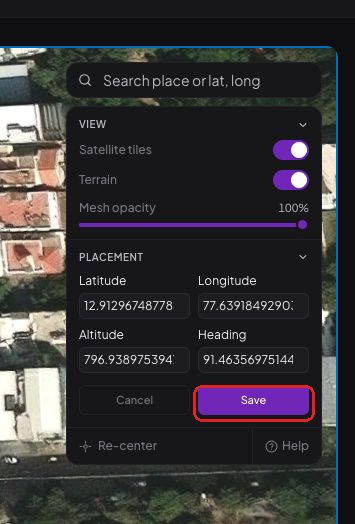
**Save** is enabled once the placement changes. Saving writes the coordinates and heading, and starts fence generation.
<figure><img src="https://3163433004-files.gitbook.io/~/files/v0/b/gitbook-x-prod.appspot.com/o/spaces%2FokTDI7QVY04Zvb1pQ8Ry%2Fuploads%2Fgit-blob-02e40ba9914e755c316d92122af71e5f37f63ea8%2Fgeo-fence-portal-02-save.png?alt=media" alt="The Placement panel with Save enabled"><figcaption><p>Save is enabled once the placement changes.</p></figcaption></figure>

### 4. Verify the fence

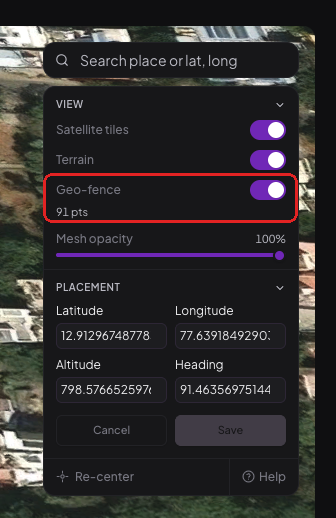
Generation runs in the background and completes within a few seconds for most maps. Reopen the viewer: the **View** panel now includes a **Geo-fence** toggle, with the vertex count of the traced outline.

<figure><img src="https://3163433004-files.gitbook.io/~/files/v0/b/gitbook-x-prod.appspot.com/o/spaces%2FokTDI7QVY04Zvb1pQ8Ry%2Fuploads%2Fgit-blob-68aadac7ecfc5fd4f1c01dbe6381e3cae94b58fa%2Fgeo-fence-portal-03-toggle.png?alt=media" alt="The View panel showing the Geo-fence toggle and vertex count"><figcaption><p>The Geo-fence toggle appears once a fence exists.</p></figcaption></figure>

Enabling it draws the fence over the imagery.

<figure><img src="https://3163433004-files.gitbook.io/~/files/v0/b/gitbook-x-prod.appspot.com/o/spaces%2FokTDI7QVY04Zvb1pQ8Ry%2Fuploads%2Fgit-blob-163b81bd4531bdf2ede3594da0cd3d6a6d0b1f3a%2Fgeo-fence-portal-04-fence.png?alt=media" alt="The geo-fence drawn over satellite imagery, following the shape of the mesh"><figcaption><p>The fence follows the shape of the scan.</p></figcaption></figure>

The outline should follow the building. If it does not, the map's location or heading is incorrect — correct the placement and save again.

The map is now returned by [nearby](#finding-what-is-nearby) and can be localized against with [`geoLocation`](#localizing-by-coordinate).

{% hint style="warning" %}
If no Geo-fence toggle appears, confirm the map is **active** and has **coordinates**, a **heading**, and a processed mesh. Saving clears any previous fence first, so `geoFenceReady` remains `false` when generation cannot run.
{% endhint %}

## Reading a fence

Returns the polygon as a **GeoJSON Feature**, so it can be handed straight to a mapping library, along with a `bbox` and `center` for fitting the view.

{% openapi src="/files/9s22fbe1NbOVwVbG0q3k" path="/vps/map/{mapId}/geo-fence" method="get" %}
[geo-fence-api.yaml](https://3163433004-files.gitbook.io/~/files/v0/b/gitbook-x-prod.appspot.com/o/spaces%2FokTDI7QVY04Zvb1pQ8Ry%2Fuploads%2Fgit-blob-c57e4a63657153937c0cf3c6e07a7a0a1289dcc5%2Fgeo-fence-api.yaml?alt=media)
{% endopenapi %}

Accepts either the `mapId` or the `mapCode`.

## Finding what is nearby

Given a coordinate, returns the ranked candidates around it. Use this once per session and cache the answer, rather than paying for the lookup on every frame.

{% openapi src="/files/9s22fbe1NbOVwVbG0q3k" path="/vps/map/nearby" method="get" %}
[geo-fence-api.yaml](https://3163433004-files.gitbook.io/~/files/v0/b/gitbook-x-prod.appspot.com/o/spaces%2FokTDI7QVY04Zvb1pQ8Ry%2Fuploads%2Fgit-blob-c57e4a63657153937c0cf3c6e07a7a0a1289dcc5%2Fgeo-fence-api.yaml?alt=media)
{% endopenapi %}

Three details worth knowing:

* **Results are grouped by what you would query.** A building whose floors share a map set returns **one** `mapSet` entry listing its matched maps, not one entry per floor. Querying a single floor is what breaks indoor localization, so the grouping steers you towards the right target. `type` tells you whether to send `mapCode` or `mapSetCode`.
* **Distance is measured to the fence edge**, so `distanceMeters` is `0` whenever the point is inside, and `containsPoint` is simply `distanceMeters == 0`.
* **Ambiguity is surfaced, not hidden.** Where fences overlap, every candidate is listed. A query by coordinate would have silently picked one.

The polygons themselves are not returned here. Fetch one from the geo-fence endpoint when you need to draw it.

## Localizing by coordinate

Pass `geoLocation` to [Map Query](/fundamentals/rest-api-docs/map-query.md) instead of naming a map. The nearest map whose fence is in range is resolved and queried for you.

```json
{
  "queryImage": "<base64>",
  "geoLocation": [37.794853, -122.394573],
  "isRightHanded": true
}
```

If the resolved map belongs to a map set, the **whole set** is queried, which is what you want indoors.

| Field             | Meaning                                                                                                                  |
| ----------------- | ------------------------------------------------------------------------------------------------------------------------ |
| `geoLocation`     | `[latitude, longitude]` in WGS 84 degrees. Mutually exclusive with `mapId`, `mapCode`, `mapSetId` and `mapSetCode`.      |
| `geoSearchRadius` | Overrides the search radius in metres for this request only. Ignored unless `geoLocation` is supplied. Defaults to 25 m. |

A successful response carries `resolvedFrom`, naming the map the coordinates landed on:

```json
"resolvedFrom": {
  "mapCode": "MAP_63ERQ0V9XSJD",
  "distanceMeters": 0,
  "searchRadiusMeters": 25
}
```

Only active maps in your account with `geoFenceReady: true` are considered. When nothing is in range you get a `404`.

{% hint style="info" %}
**`geoLocation` doubles as a `geoHint`.** If you supply neither `geoHint` nor `hintPosition`, the coordinate is reused as the localization prior, and `hintRadius` then defaults to **100 m** rather than the usual 25 m, because a raw GPS fix is far less precise than a hint you calculated yourself.

Supply `geoHint` explicitly when you have a better position than the device's GPS. See [GeoHint in Localization](/fundamentals/localization/geohint-in-localization.md).
{% endhint %}

## Which approach to use

<table><thead><tr><th width="220">Situation</th><th>Do this</th></tr></thead><tbody><tr><td>You already know the map</td><td>Send <code>mapCode</code> or <code>mapSetCode</code> as before. Nothing changes.</td></tr><tr><td>A user opens your app somewhere in a large estate</td><td>Call <strong>nearby</strong> once, pick a target, then query that target for the session.</td></tr><tr><td>One-off query and you do not want to manage state</td><td>Send <code>geoLocation</code> on the query itself.</td></tr><tr><td>Fences overlap and you need to choose deliberately</td><td>Call <strong>nearby</strong>, which lists every candidate, rather than letting the query pick.</td></tr></tbody></table>

{% hint style="warning" %}
Resolving by coordinate costs a spatial lookup on every request. For anything running at frame rate, resolve once with **nearby** and reuse the code.
{% endhint %}

## Drawing a fence

To draw a fence in your own application, fetch the Feature and hand it to your mapping library, using `bbox` with `fitBounds` to frame it.

For a quick visual check of a single map, the Developer Portal already draws it — see [Generating a fence manually](#generating-a-fence-manually).


---

# Agent Instructions
This documentation is published with GitBook. GitBook is the documentation platform designed so that both humans and AI agents can read, navigate, and reason over technical content effectively. Learn more at gitbook.com.

## Querying This Documentation
If you need additional information that is not directly available in this page, you can query the documentation by asking a question.

Perform an HTTP GET request on the following URL with the `ask` and `goal` query parameters:

```
GET https://docs.multiset.ai/fundamentals/georeferencing-maps/geo-fence.md?ask=<question>&goal=<user_goal>
```

`ask` is the immediate question: it should be specific, self-contained, and written in natural language.
`goal` is what the user is ultimately trying to achieve, the reason they need the answer. Sharing it helps GitBook give you a better, more relevant answer. A goal is most helpful when it describes the outcome the user wants rather than restating the question. For example, with `ask=how do I create an API token`, a goal like `automate deployments from our CI pipeline` lets GitBook tailor the answer to that use case.

The response will contain a direct answer to the question and relevant excerpts and sources from the documentation.

Use this mechanism when the answer is not explicitly present in the current page, you need clarification or additional context, or you want to retrieve related documentation sections.